Anywhere Access wizard

Good morning.  I figured it was time for Windows Server Essentials to get some time on this blog.  What better way to start than with the main wizard in Essentials.   The Anywhere Access wizard.  Anywhere access is probably one of Windows Essentials top features.  Here is what it can do.

  • Allow access to file shares on the server through a web interface.
  • Allow encrypted RDP (Remote Desktop Protocol) access to any system joined to the domain
  • Allow SSTP (Secure Socket Tunneling Protocol) VPN (Virtual Private Network) access.
  • Allow remote access to the Dashboard to administer the server

All of this is setup automatically with an easy to use wizard.  There are two requirements though for running the wizard; internet access, and a trusted certificate.

So what can possibly go wrong?
Essentials Internet

This is the most common issue that I see with the wizard.  Basically, the wizard does not believe the server has internet access.  So how does the wizard know whether the server is connected to the Internet?  It checks to see if the name www. microsoft. com is resolvable in DNS (Domain Name System).  If it is, then the wizard will continue even if it cannot access the list of domain services. So if this error comes up it typically indicates a DNS problem problem.

So what is a good method for troubleshooting this issue?

  1. Connect to the DNS management console.  (dnsmgmt.msc)
  2. Right-click the server name and choose properties.
  3. Go to the Root Hints tab.
  4. Click the “Copy from Server” button.
  5. Enter in 198.41.0.4 and click OK.
  6. Switch to the Forwarders tab.
  7. Click the Edit button.
  8. Delete all forwarders.
  9. Test access to http://www.microsoft.com and if successful, run the Anywhere Access wizard again.

If the problem still persists, then it is time to go deeper.  Some ISPs (Internet Service Providers) block access to root hints and require the use of their DNS servers.  This is fairly rare, but I have encountered it a few times.  To test and configure a DNS forwarder, follow the instructions below.

  1. Open an admin command prompt.  (Right-click windows icon at bottom left and choose “Command Prompt(Admin)”)
  2. Type nslookup and hit enter.
  3. Type www. microsoft. com and hit enter (Remove the spaces).

    Good output:

    Server:  server.myessentialsdomain.local
    Address:  192.168.1.2
    
    Non-authoritative answer:
    Name:    e10088.dspb.akamaiedge.net
    Addresses:  2600:1404:21:28b::2768
    2600:1404:21:288::2768
    104.93.66.12
    Aliases:  www.microsoft.com
    www.microsoft.com-c.edgekey.net
    www.microsoft.com-c.edgekey.net.globalredir.akadns.net


    Bad output:

    Server:  server.myessentialsdomain.local
    Address:  192.168.1.2
    
    ***server.myessentialsdomain.local can't find www.microsoft.com: Non-existent domain

    If you received the good output, try the Anywhere access wizard again. If you are seeing the bad output, then proceed on.

  4. Type server 8.8.8.8 and hit enter
  5. Type www. microsoft. com and hit enter. (Remove the spaces)  Refer to step 3.  If good output is produced, then proceed on.  If bad output is produced, then repeat step 4 and 5 using the DNS server provided by your ISP.  Proceed good output is received.
  6. Open the DNS management console.
  7. Right-click the server name and choose properties.
  8. Click on the Forwarders tab.
  9. Click the Edit button.
  10. Add the server IP address that worked in 4.
  11. Click OK twice.
  12. Switch back to the admin command prompt.
  13. Type ipconfig /flushdns and hit enter.
  14. Re-run the Anywhere Access wizard.

If the above steps don’t fix the problem for you, I want to hear about it in the comments section.
OWA, Something went wrong :( and the case of the missing sharedwebconfig.config

Good morning.  I wanted to take the time this morning to go over an issue I saw the other day.  This issue was pretty difficult to track down, so I figured I would go over as many of the symptoms as possible.  This is in hope that someone suffering this issue will have an easier time of it.

So I am working with a deployment consultant and he has an issue where OWA (Outlook Web Access) is not working.  We have a new deployment of three 2016 Exchange servers. First thing, I checked the version of .NET, as my group have seen a few cases of .NET 4.6.1 on Exchange.  Well it appears that WSUS had pushed it.  I figured we had found the issue.  We reverted .NET to 4.5.2 and tested on one server.  OWA is now working.  So I was thinking great, we have the issue resolved.  Unfortunately, after reverting all 3 servers there are still problems.  It appears that one of them is working, but two are not.  Here are the symptoms I found.

  • In the IIS logs for the Exchange frontend are the following lines:
    timestamp::1 POST /owa/auth.owa &CorrelationID=<empty>;&ClientId=123&cafeReqId=123;&encoding=; 443 user.name ::1 Mozilla/5.0+(Windows+NT+6.3;+WOW64;+Trident/7.0;+rv:11.0)+like+Gecko https://localhost/owa/auth/logon.aspx?replaceCurrent=1&url=https%3a%2f%2flocalhost%2fowa%2f%23authRedirect%3dtrue 302 0 0 0
    timestamp::1 POST /owa/sessiondata.ashx appcacheclient=1&acver=15.1.225.42&crr=1&CorrelationID=123;&ClientId=123&ClientRequestId=123&encoding=;&cafeReqId=123; 443 user.name ::1 Mozilla/5.0+(Windows+NT+6.3;+WOW64;+Trident/7.0;+rv:11.0)+like+Gecko - 302 0 0 15
    timestamp::1 GET /owa/auth/errorFE.aspx httpCode=500&CorrelationID=123;&ClientId=123&cafeReqId=123;&encoding=; 443 - ::1 Mozilla/5.0+(Windows+NT+6.3;+WOW64;+Trident/7.0;+rv:11.0)+like+Gecko - 200 0 0 703
    timestamp::1 POST /owa/plt1.ashx cId=123&msg=USRCompositeServerErr&tg=&MDB=789&nId=0000000000000000&MBX=123&sdCoId=123_123&sds=200&fe=FrontEndSERVERNAME&be=null&cbe=null&cver=15.1.225.42&sdver=null&...+like+Gecko - 302 0 64 15
    timestamp::1 GET /owa/auth/errorFE.aspx httpCode=500&CorrelationID=<empty>;&ClientId=123&cafeReqId=123;&encoding=; 443 - ::1 Mozilla/5.0+(Windows+NT+6.3;+WOW64;+Trident/7.0;+rv:11.0)+like+Gecko - 200 0 0 0
    timestamp::1 GET /owa/ bO=1&CorrelationID=<empty>;&ClientId=123&ClientRequestId=123&encoding=;&cafeReqId=123; 443 user.name ::1 Mozilla/5.0+(Windows+NT+6.3;+WOW64;+Trident/7.0;+rv:11.0)+like+Gecko - 302 0 0 0
    timestamp::1 GET /owa/auth/errorFE.aspx httpCode=500&CorrelationID=<empty>;&ClientId=123&cafeReqId=123;&encoding=; 443 - ::1 Mozilla/5.0+(Windows+NT+6.3;+WOW64;+Trident/7.0;+rv:11.0)+like+Gecko - 200 0 0 15
  • In the IIS logs for the Exchange backend, the following is found:
    timestamp ::1 GET /owa/auth/15.1.225/themes/resources/segoeui-regular.eot &CorrelationID=<empty>;&ClientId=123&cafeReqId=123;&encoding=; 443 - ::1 Mozilla/5.0+(Windows+NT+6.3;+WOW64;+Trident/7.0;+rv:11.0)+like+Gecko https://localhost/owa/auth/errorFE.aspx?httpCode=500 200 0 0 0
    timestamp ::1 GET /owa/auth/15.1.225/themes/resources/segoeui-semilight.eot &CorrelationID=<empty>;&ClientId=123&cafeReqId=123;&encoding=; 443 - ::1 Mozilla/5.0+(Windows+NT+6.3;+WOW64;+Trident/7.0;+rv:11.0)+like+Gecko https://localhost/owa/auth/errorFE.aspx?httpCode=500 200 0 0 0
  • Checking the event log gives an event ID 1309 every time OWA is accessed.  Below are the details.
    Log Name:      Application
    Source:        ASP.NET 4.0.30319.0
    Date:          3/19/2016 5:49:48 AM
    Event ID:      1309
    Task Category: Web Event
    Level:         Warning
    Keywords:      Classic
    User:          N/A
    Computer:      Exchange2016.MyExchange.com
    Description:
    Event code: 3005 
    Event message: An unhandled exception has occurred. 
    Event time: date/time 
    Event time (UTC): date/time 
    Event ID: ...
    ...
    
    ...
    ...
    
    <Data>Exception has been thrown by the target of an invocation.
       ...
    ...
    ...
    ...
       at System.Web.Hosting.PipelineRuntime.InitializeApplication(IntPtr appContext)
    
    Could not load file or assembly 'Microsoft.Exchange.Diagnostics, Version=15.0.0.0, Culture=neutral, PublicKeyToken=31bf3856ad364e35' or one of its dependencies. The system cannot find the file specified.
       at Microsoft.Exchange.Clients.Owa2.Server.Core.OwaApplication..ctor()
       at Microsoft.Exchange.Clients.Owa2.Server.Core.BaseApplication.CreateInstance()
       at ASP.global_asax..ctor()
    
    </Data>
    ...
    ...


After some extensive checking of the modules in IIS (Internet Information Services), there did not appear to be a configuration issue.  I then tripped upon the following blog article.  This led me to a Microsoft KB on the topic.  It turns out that sometimes when you install Exchange, the SharedWebConfig.config file does not get created.  The fix is to copy one from a working server.  Well what if you don’t have a working server?  In this case we did, but what if you just have one server?  You are in luck.  Here is a copy of the SharedWebConfig.config file.  Just rename the extension from .doc to .config.  I took this from an RTM Exchange 2016 server, so I am not sure it will work in 2013.

I hope this helps you out.

Microsoft Exchange OWA and the dreaded HTTP 500 error

Here is an issue I see just infrequently enough to forget it.  When accessing OWA (Outlook Web Access), the following interaction takes place.

  1. The user accesses OWA via a web browser and receives the logon page.
  2. The user enters his/her credentials and presses the Sign in button.
  3. The user is presented with a 500 Internal Server Error screen.  The address indicated is https://myexchangeserver.mydomain.com/owa/auth.owa.  The title bar typically indicates HTTP 500 Internal Server Error.

The most common cause for the above behavior is the “Microsoft Exchange Forms-Based Authentication service” is not started.  Sometimes this service does not automatically start at boot.  Simply starting the service will correct the issue.

In case the above is not causing the issue, there is another easy step to correct the issue.  Reset the OWA virtual directory.  Below are the PowerShell commands.

  • Get-OwaVirtualDirectory ‘SERVER\owa (Default Web Site)’ | fl
  • Remove-OwaVirtualDirectory ‘SERVER\owa (Default Web Site)’
  • New-OwaVirtualDirectory -WebSiteName ‘Default Web Site’

In all of the above commands, replace SERVER with the actual server name.
The first command is to get all settings for OWA.  This can be useful if it is later determined there were custom settings that need to be restored.  The second command removes the existing virtual directory.  The last command creates a new OWA virtual directory will all default settings.

If after doing all of the above, and the issue remains, it is time to start going through the IIS (Internet Information Server) logs and the event viewer to determine the cause of the problem.

If you have another scenario where OWA is generating a 500 Internal Server Error I want to hear about in the comments section.

How to measure available network bandwidth

This is an issue I see from time to time.  A server appears to be “slow” on the network.  When you run into this kind of an issue it can be difficult to troubleshoot as there are a considerable number of variables that may be causing the “slowness”.  One of the first tests I like to perform is to test the available network bandwidth.  It is fairly easy to test and will cut the possible culprits in half.

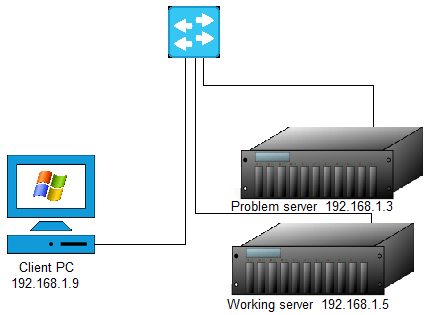
Below is a step-by-step on how to test, accompanied by a diagram.  A note on testing.  In the diagram below the Problem server and Working server have the same network path back to the Client PC.  This allows an apples-to-apples comparison to be made.

iperf bandwidth diagram

  1. Download the Iperf utility.  You can get it from here.  Copy it to the Client PC, Problem server and Working server.
  2. Extract the Iperf zip file on the Client PC, Problem server and Working server.
  3. On the Client PC, open an administrative command prompt and navigate to the folder with the extracted Iperf binaries.  Run the following command*: Iperf3.exe -s
  4. On the Problem server, open an administrative command prompt and navigate to the folder with the extracted Iperf binaries.  Run the following command**: Iperf3.exe -c 192.168.1.9 -w 2m -t 30s -i 1s
  5. Repeat step 4 on the Working server


The Working server and Problem server can now be compared directly.  If the speed and amount of data transferred are very close, then the network can be virtually eliminated as a cause of the “slowness”.  Also it is unlikely there is a network card hardware or driver issue.
However if the Problem server transferred significantly less data or the transfer speed was significantly lower, then the network needs a closer look. To rule out the network switch, swap the network switch ports of the two servers, and repeat step 4 and 5 above.  To rule out the network cable, swap the network cables of the two server and repeat step 4 and 5 above.  If problems continue, then update the network card driver and firmware on the problem server.  If at this point the issue remains, it is time to take a closer look at the operating system on the Problem server.


*Iperf runs on port 5201 by default.  If a firewall is enabled on the Client PC, the firewall will need to be disabled or an inbound rule created
**Change the IP address to match the system you ran the iperf.exe -s command on.

The Software Protection service

I ran across an interesting issue on Windows 2012 the other day, that I figured I would share.  I had a customer that had 4 virtual machines on the same host that were all indicating they were not genuine.  Aside from this we had 2 other strange behaviors.

  1. Server Manager would not populate any of the local server information fields.  All fields showed Unknown.
  2. Slmgr commands were failing with “Error:0x80070422 On a computer running Microsoft Windows non-core edition, run ‘slui.exe 0x2a 0x80070422’ to display the error text.”

When running the command slui.exe 0x2a 0x80070422 we get the following description.  The service cannot be started, either because it is disabled or because it has no enabled devices associated with it.So which service is it talking about?

The Software Protection service. This service runs in the background and checks every minute or so whether the OS is licensed properly.  In this particular case someone had disabled the sppsvc (Software Protection service).  The fix was easy, re-enable the service and start it.

This brings me to another issue I have seen with sppsvc on several occasions.  What if the service cannot be started due to an Access Denied error.  This can typically be fixed, but we need to know where the Access Denied is coming from.  The best tool, I have found, to do the job is Process Monitor.  With this tool it is possible to see every time the filesystem or registry is touched and which process did it.

Here is how you setup Process Monitor.

  1. First download the tool here.
  2. Run procmon.exe from the zip file.
  3. Accept the EULA.
  4. Stop capturing (Ctrl+E) and Clear the display (Ctrl+X)
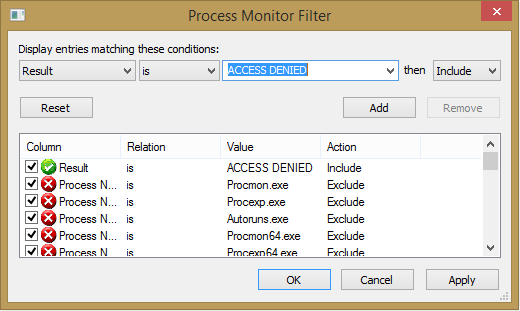
  5. Create a filter (Ctrl+L) with the following attributes.  Result is ACCESS DENIED then Include.  Add the filter and click OK.  See the picture below.

procmon filter

6. Start capturing events in Process Monitor (Ctrl+E) and immediately start the Software Protection service.
7. As soon as the Access Denied error pops up, stop capturing events in Process Monitor.

At this point there should be one or more ACCESS DENIED events.  When I have seen this issue, it has always been 2 registry keys that are missing permissions; HKLM\SYSTEM\WPA and HKLM\SOFTWARE\Microsoft\Windows NT\CurrentVersion\SoftwareProtectionPlatform.

To correct the access denied issue the registry permissions will need to be restored.  Normally that would mean restoring the permission for the account starting the service, in this case Network Service.  The Software Protection service is a little different though.  There is a special account that needs to be added, “NT Service\sppsvc”.  Below are the special permissions that need to be granted on the registry keys.

  • HKEY_LOCAL_MACHINE\SYSTEM\WPA.  All subkeys need to inherit these permissions.
    • Query Value
    • Set Value
    • Create Subkey
    • Enumerate Subkeys
    • Read Control
  • HKEY_LOCAL_MACHINE\SOFTWARE\Microsoft\Windows NT\CurrentVersion\SoftwareProtectionPlatform
    • Set Value
  • HKEY_LOCAL_MACHINE\SOFTWARE\Microsoft\Windows NT\CurrentVersion\SoftwareProtectionPlatform\PayloadOverride
    • Full Control


Using PowerShell to create a split DNS zone

I ran across a great blog article on setting up a split DNS (Domain Name System) zone this morning.   It got me to thinking though, can I do this in PowerShell?  The answer is yes.  And it is quicker than using the DNS management console.  Change the zone name and IP address to match the name and server IP respectively.

  1. Add-DnsServerPrimaryZone <test.mydomain.com> -ReplicationScope “Forest”
  2. Add-DnsServerResourceRecord -A -Name “.” -ZoneName <test.mydomain.com> -IPv4Address <99.99.99.99>


If you have a way of doing this command in one line I want to hear about it.  Post it in the comments below.