How to disable WSUS in SBS

Since I am on the kick of disabling applications in SBS (Small Business Server), I figured I would post an article on disabling WSUS (Windows Server Update Services).  As with disabling SharePoint, it will save resources and if WSUS is broken then clients are not updating.  This process can be easily reversed if it is decided to re-enable WSUS later.  Lastly this process will not break the SBS console or any of the wizards.

Here is the process for disabling WSUS.

  1. Disable the following services in the services console.  (services.msc)
    • Update Services
    • Windows Internal Database (MICROSOFT##SSEE)*
  2. Disable the application pool and site in IIS (Internet Information Services) manager
    • Launch IIS manager.  (inetmgr)
    • Expand the server name.
    • Click on Application Pools.
    • Right-click WsusPool and choose Stop.
    • Click on Sites.
    • Right-click on WSUS Administration, highlight Manage Web Site, and click Stop.
    • Close the services console and the IIS manager.
  3. Unlink the group policies for WSUS.
    • Launch the Group Policy Management console.  (gpmc.msc)
    • Expand Forest
    • Expand Domains
    • Expand your domain name
    • Right-click on the following policies and select Delete.  You might get a popup indicating that you clicked on link.  Just click OK on that popup.
      • Update Services Client Computers Policy
      • Update Services Common Settings Policy
      • Update Services Server Computers Policy
    • Close the Group Policy Management console.


*For SBS 2008, do not disable this service unless you are also disabling SharePoint.

How to disable SharePoint (Companyweb) in SBS

This is a question I get from time to time.  How can I turn off Companyweb or SharePoint in SBS (Small Business Server)?

So why might you want to disable SharePoint (Companyweb)?

  1. SharePoint is not functioning properly and is clogging the application log with errors and warnings
  2. It is not being used, so why not free up the resources.  At least 500MB of RAM will be freed up.

Either way, here is my tested method for disabling SharePoint in less than 5 minutes.  This method allows SharePoint to be re-enabled again and does not cause problems with the wizards or the SBS console.  I prefer not to uninstall SharePoint as it takes a good amount of time to reinstall it and setup Companyweb.

  1. Disable the SharePoint services in the services console (services.msc)
    • SharePoint 2010 Administration
    • SharePoint 2010 Timer
    • SharePoint 2010 Tracing
    • SharePoint 2010 VSS Writer
    • SharePoint Foundation Search V4
    • SQL Server (SHAREPOINT)
  2. Stop the application pool and sites in IIS (Internet Information Services)
    • Launch IIS manager. (inetmgr)
    • Expand the server name and click Application Pools.
    • Stop the following application pools
      • SBS Sharepoint AppPool
      • SharePoint Central Administration v4
      • SharePoint Web Services Root
    • Click on Sites.
    • On each the following sites, right-click, highlight Manage Web Site, and choose Stop
      • Companyweb
      • SBS SharePoint
      • SharePoint Central Administration v4
      • SharePoint Web Services
    • Close the services console and IIS manager

Why is the SBS console crashing?

Since I have seen this issue three times this week, I figured it was time to write a post about how to troubleshoot SBS (Small Business Server)  console crashes.  This is an issue I usually see several times a month.  Most people want to repair the SBS console as the first step.  However I have never seen a SBS console crash that was caused by a problem with the console itself.  Console crashes are always caused by an application and/or service the console is trying to access.  The most common of these is WSUS (Windows Server Update Services).

So how do you troubleshoot a SBS console crash?
The answer is always in the console.log, or console2.log, file.  Here is the process I follow to find the cause for the crash.  I am using an example that I had yesterday, but the process is similar for all cases.

  1. Close the SBS console if it is open.
  2. Navigate to the C:\Program Files\Windows Small Business Server\Logs directory.
  3. Rename the console.log and console2.log if it exists.
  4. Launch the SBS console and get the console to crash as soon as possible.  When it crashes, do not relaunch it.
  5. Open the console.log with a text editor.
  6. Press Ctrl+End to navigate to the bottom of the log.

We are looking for the outer and inner exceptions.  The outer exception always comes first  and is immediately followed by the inner exception.  The inner exception will tell you the problem.  In the example below the problem is corruption in the WSUS database.  In this case the easiest fix is to reinstall WSUS.


Outer exception:

[15668] 160225.173854.0543: Exception:
—————————————
An exception of type ‘Type: System.Reflection.TargetInvocationException, mscorlib, Version=4.0.0.0, Culture=neutral, PublicKeyToken=b77a5c561934e089’ has occurred.
Timestamp: 02/25/2016 17:38:54
Message: Exception has been thrown by the target of an invocation.
Stack:    at Microsoft.WindowsServerSolutions.Console.Pages.Computers.Computers.QueryComputerJob.OnCompleted(Object sender, RunWorkerCompletedEventArgs e)
at System.Threading.ExecutionContext.Run(ExecutionContext executionContext, ContextCallback callback, Object state, Boolean ignoreSyncCtx)
at System.Threading.QueueUserWorkItemCallback.System.Threading.IThreadPoolWorkItem.ExecuteWorkItem()
at System.Threading.ThreadPoolWorkQueue.Dispatch()
at System.Threading._ThreadPoolWaitCallback.PerformWaitCallback()


Inner exception:

—————————————
An exception of type ‘Type: System.Data.SqlClient.SqlException, System.Data, Version=4.0.0.0, Culture=neutral, PublicKeyToken=b77a5c561934e089’ has occurred.
Timestamp: 02/25/2016 17:38:54
Message: SQL Server detected a logical consistency-based I/O error: incorrect pageid (expected 1:1793122; actual 7015:33685504). It occurred during a read of page (1:1793122) in database ID 5 at offset 0x0000036b8c4000 in file ‘C:\WSUS\SUSDB\\UpdateServicesDbFiles\SUSDB.mdf’.  Additional messages in the SQL Server error log or system event log may provide more detail. This is a severe error condition that threatens database integrity and must be corrected immediately. Complete a full database consistency check (DBCC CHECKDB). This error can be caused by many factors; for more information, see SQL Server Books Online.
Stack:    at Microsoft.UpdateServices.Internal.BaseApi.SoapExceptionProcessor.DeserializeAndThrow(SoapException soapException)
at Microsoft.UpdateServices.Internal.DatabaseAccess.AdminDataAccessProxy.ExecuteSPGetUpdateInstallationInfoForComputer(String computerId, String updateScopeXml, String preferredCulture, ExtendedPublicationState publicationState)
at Microsoft.UpdateServices.Internal.BaseApi.ComputerTarget.GetUpdateInstallationInfoPerUpdate(UpdateScope updatesToInclude)
at Microsoft.WindowsServerSolutions.SystemHealth.UpdateServices.DataProvider.GetPerComputerStatus(String FullDNSComputerName, DateTime starting)
at Microsoft.WindowsServerSolutions.Console.Pages.Computers.Computers.QueryCompUpdateJob.SetUpdateCompliance()
at System.ComponentModel.BackgroundWorker.WorkerThreadStart(Object argument)
WSUS uninstall is failing

Yet another issue I have seen a few times.  I am trying to uninstall WSUS (Windows Server Update Services) and I find out that someone deleted the WSUS database from the hard drive.  Without the database, the uninstall of WSUS will fail.

Here is the process I have successfully used every time to uninstall WSUS when the uninstaller fails.  This process will work on both Windows 2008 and Windows 2008 R2.

  1. Open the Windows registry editor.
  2. Navigate to HKLM\Software\Microsoft\Update Services\Server\Setup.
  3. Change the value of “wYukonInstalled” and “SqlInstanceIsRemote” to 0 (zero).
  4. Close the Windows registry editor.
  5. Launch server manager and right-click on Roles.
  6. Click Remove Roles.
  7. On the Server Roles screen, uncheck “Windows Server Update Services” and click Next.
  8. Click Remove.
  9. When the uninstall wizard comes up, leave all three check boxes for database, logs and updates unchecked.  Proceed with removal.
  10. Once WSUS is uninstalled, manually remove the WSUS content and/or database files from the hard drive.

How to reset secure channel on a domain controller

I have run across the situation a few times where I needed to reset secure channel for the computer account of a domain controller.  Before I get into how to do this, let me present a few of  the symptoms that would require resetting secure channel.

  1. You receive an access denied error when access the DNS management console on the problem domain controller.
  2. You run nltest /sc_query:domain.local and receive access denied.
  3. You run nltest /sc_verify:domain.local and receive access denied.

Here is how you reset secure channel on a domain controller:

  1. Open an administrative command line
  2. Run the following commands*:
    • net stop kdc
    • klist purge
    • netdom resetpwd /server:<DCName> /userD:<domain\username> /passwordD:*
    • net start kdc
    • net stop DNS & net start DNS

*In the netdom resetpwd command replace <DCName> with the name of a peer DC, or in the case of a single domain controller, the server  itself.

Reinstall WSUS on SBS

UPDATE: WSUS 3.0 SP2 will not reinstall.  There is an expired certificate in the installer package for SUSDB that will cause the setup to fail.  Unless Microsoft decides to recompile the installer package this will not be fixed.

I figured I would create a post on WSUS (Windows Server Update Services) and SBS (Small Business Server).  More specifically I want to talk about the most common issue I see with my customers. The WSUS database grows to a very large size causing a number of symptoms.

  1. The WSUS console disconnects.
  2. The SBS console shows Update status as not available.
  3. The updates tab in the SBS console shows “An error occured while retrieving updates information” for all four update categories.
  4. Clients are not able to connect to WSUS and/or are not updating.

According to the research I have done Microsoft does not limit resources or the size of the WSUS database.  However in practice I have seen that when the SUSDB exceeds 10GB issues start to crop up.  I have found the easiest and fastest fix is to remove and reinstall WSUS.  Below are the steps for SBS 2011*:

  1. Remove WSUS.
    • Go to Control Panel then Programs and Features.
    • Highlight Windows Server Update Service 3.0 SP2 and choose Uninstall.
    • Check all three boxes to remove the database, logs and downloaded updates.
    • Complete the uninstall wizard.
    • If the uninstall fails, see this article.
  2. Reinstall WSUS.
    • Open an administrative command prompt
    • Change directories to C:\Program Files\Windows Small Business Server\Bin\CMPNENTS\WSUS_SP2
    • Run the following command**: WSUS30-KB972455-x64.exe /q DEFAULT_WEBSITE=0 CREATE_DATABASE=1 CONTENT_LOCAL=1 CONTENT_DIR=C:\WSUS WYUKON_DATA_DIR=C:\WSUS
    • The install will take anywhere from 2-10 minutes depending on hardware.  To verify the install is complete look for an event ID 1042 in the application event log.  If the install crashes, just rerun the above command again.
  3. Perform the SBS customizations.
    • Click Start, click Administrative Tools, and then click Microsoft Windows Server Update Services
    • In Update Services, expand the name of the server, and then click Options.
    • Click Products and Classifications, and then on the Products tab, verify that all check boxes are selected.
    • In the Products and Classifications dialog box, click the Classifications tab, and then check the following boxes:
      • Critical Updates
      • Definition Updates
      • Security Updates
      • Service Packs
      • Update Rollups
    • In Options, click Update Files and Languages, click the Update Languages tab, choose the option Download updates only in these languages, and then verify that English is selected.
    • In Options, click Synchronization Schedule, click Synchronize automatically, and then, in First synchronization, change the time to 10:00:00 P.M.  Click OK.
    • In Update Services, expand Computers, click All Computers, and then in Actions, click Add Computer Group.  Add the following computer groups:
      • Update Service Excluded Computers
      • Update Services Client Computers
      • Update Services Server Computers
  4. Update WSUS so that it will work with Windows 8 and higher clients.
    • Download the Microsoft update KB2734608.
    • Install the update.
    • Reboot the server.  The server must be rebooted before the first synchronization with Microsoft update servers.  If it is not, then WSUS and clients may require additional steps to repair.

* For the SBS 2008 the steps are the same, but WSUS 3.0 SP2 will need to be downloaded from the Microsoft site.  You can find it here.  Make sure and download the x64 version.

** Now is a great time to move the WSUS database and content repository to another drive.  It will be more difficult to move the WSUS DB later.  To move the location, change the C:\WSUS to another drive.  For example D:\WSUS.  Make sure and change both instances.

Domain controller time synchronization

Here is a scenario that I have run into a few times.  An Active Directory environment where the PDC (Primary Domain Controller) Emulator role is hosted on a virtualized domain controller that is running on Hyper-V.  It is perfectly acceptable to do this, however it is very likely  that the environment will suffer from time drift.  In some cases this it can be a big problem.  Here is a solution I have tested and found to work well.

  1. Remove time synchronization for the PDC Emulator in Hyper-V:
    • In the Hyper-V management console, go to the settings for the PDC Emulator domain controller.
    • Select Integration Services and uncheck Time synchronization.
  2. Set the PDC Emulator to synchronize with an external source.
    • Connect to the PDC emulator
    • Run the following commands in an administrative command window:
      • net start w32time
      • w32tm /config /manualpeerlist:“us.pool.ntp.org,0x1” /syncfromflags:MANUAL /reliable:yes
      • w32tm /config /update
      • w32tm /resync
      • w32tm /resync /rediscover
    • In the same command window  run w32tm /query /status.  At this point the source should be us.pool.ntp.org.
  3. Set the peer domain controllers to sync with the PDC Emulator.
    • Connect to each peer domain controller and run the following commands in an administrative command window:
      • w32tm /config /syncfromflags:DOMHIER /update
      • net stop w32time && net start w32time
      • w32tm /resync /force

* If the link no longer works, then go here and choose the fix it for me under “Configuring the Windows Time service to use an external time source.”

“Item Not Found” when attempting to delete a file or folder in Windows

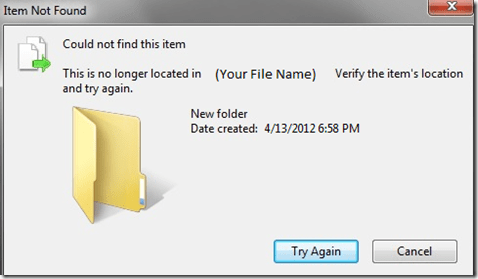
I ran across this issue today with a customer and it took quite a bit of digging to find a solution.  Here is a screenshot of the error:

item not found error

In digging around I found there is a utility to address this issue, but I am cheap and don’t want to pay for something if I can find an alternate solution.  Without further ado, here is how you fix it.

To delete a file:

  1. Open an administrative command prompt.
  2. Run the following command: del “\\?\X:My Directory\Bad File.ext”  (Replace everything after \\?\ with the actual path to the problem file.)

To delete a folder/directory:

  1. Open an administrative command prompt.
  2. Run the following command: rd /s “\\?\X:My Directory\Bad Directory”  (Replace everything after \\?\ with the actual path to the problem directory.)


Where is that easy button?


Thanks to  Rayza73 who posted this on the Microsoft forums.