How to properly deploy Remote Desktop Services in a workgroup

I have previously written an article on setting up RDS (Remote Desktop Services) in domain environment.  However, what if there is only one server and/or there is no domain?  It is still possible to setup RDS, but the process is a little different.  Connection broker, a component of RDS, does not work properly in a workgroup environment.  Also it is not possible to use Remote App, another component of RDS, or create a session collection.  Without a session collection, Session Host, yet another RDS component, will not be able to obtain licenses. Without licenses RDS will cease to function after the initial grace period.  Typically this is 120 days. We get around this by manually editing the WMI attributes for Session Host.

Here is how to properly deploy RDS in a workgroup.  I am going to use PowerShell to make this quick and easy.  This guide is applicable for Windows 2012, 2012R2 and 2016 in a single server workgroup environment.  If you have Windows Server 2019 or higher the process has changed.  Skip to the bottom for that process.

  1. Launch a Windows PowerShell using the Run as Administrator option.
  2. Run the following command to install the RDS components that are required. (This will automatically restart the server)
    Install-WindowsFeature RDS-RD-Server,RDS-Licensing -IncludeManagementTools -Restart
  3. After the server restarts, log back in.
  4.  Launch a Windows PowerShell using the Run as Administrator option.
  5. Run the following commands to manually configure Session Host*.
    • $obj = gwmi -namespace “Root/CIMV2/TerminalServices” Win32_TerminalServiceSetting
    • $obj.ChangeMode(2)
    • $obj.SetSpecifiedLicenseServerList($env:computername)

The next step is to activate the RDS license server and install RDS CALs.  You can find an article on how to do that here.

* On the $obj.ChangeMode() command:
$obj.ChangeMode(4) = Per User licensing
$obj.ChangeMode(2) = Per Device licensing (supported mode for workgroups)

An update to this article.  It appears in Windows Server 2016 and 2019 Microsoft is enforcing Per Device mode in a workgroup configuration.  So if you install RDS in a workgroup in 2016 or 2019, you should use Per Device mode.  This is not usually an issue as RDS CALs can be converted between Per User and Per Device in the licensing manager.

Another update, July 2021.   Microsoft has changed the process for Windows Server 2019.  The above PowerShell script will fail to set the mode.  To properly do this the registry needs to be edited.

  1. Open Registry editor (Right-click Windows logo at the bottom left and choose Run.  Type regedit and hit enter.)
  2. Navigate to:
    HKEY_LOCAL_MACHINE\SYSTEM\CurrentControlSet\Control\Terminal Server\RCM\Licensing Core
  3. Verify there is a DWORD for “LicensingMode” and it is set to 2.  If not present, right-click and choose New-> DWORD (32-bit) Value.  This must be set to 2 for “Per Device”
  4. Navigate to:
    HKEY_LOCAL_MACHINE\SYSTEM\CurrentControlSet\Services\TermService\Parameters\LicenseServers
  5. Verify there is a Multi-String for “SpecifiedLicenseServers” and it is set to the server’s name.  If not preset, right-click and choose New->Multi-String Value.  
  6. Reboot the server.

How to properly deploy Remote Desktop Services on a single domain joined server

I have seen so many deployments of RDS (Remote Desktop Services) done incorrectly in Windows Server 2012/2012R2 that I wanted to get the correct process out there.  Unlike previous versions of Windows, RDS in 2012 must be deployed with the RDS installation wizard.  There is one exception to this rule.  When there is only one server and it is in a workgroup, the deployment works differently.  I will cover that deployment in another guide.

This guide is applicable for a Windows 2012/2012R2 server that is joined to a domain or is a domain controller.  Following the below steps will take you through the setup of the first RDS server.

  1. Join the server to the domain.  If the server is also to be the domain controller*, install the ADDS (Active Directory Domain Services) role and promote the server.
  2. Launch the Add Roles and Features Wizard in Server Manager.
    1. Launch Server Manager
    2. At the top right, click Manage
    3. Choose Add Roles and Features
  3. On the Installation Type screen, choose Remote Desktop Services installation and click Next.
    installation type
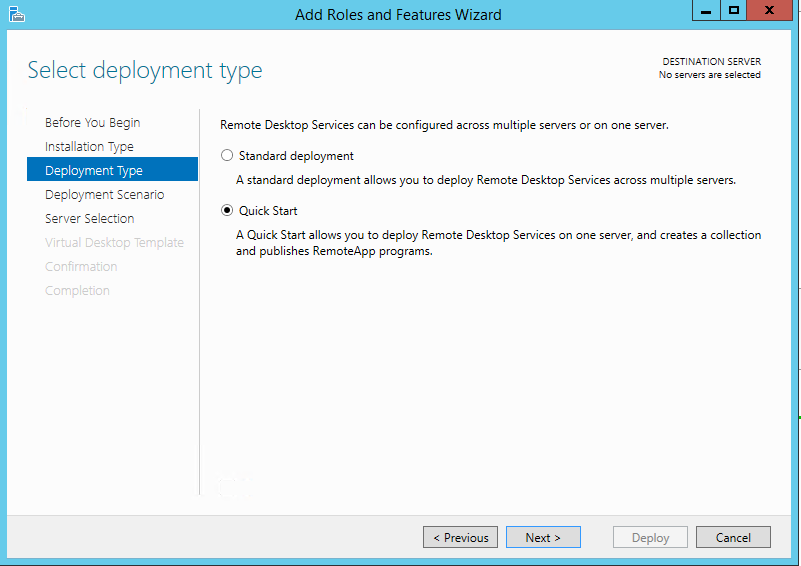
  4. On the Deployment Type screen, choose Quick Start and click Next.
    quick start
  5. On the Deployment Scenario screen, choose Session-based desktop deployment and click Next
    session based
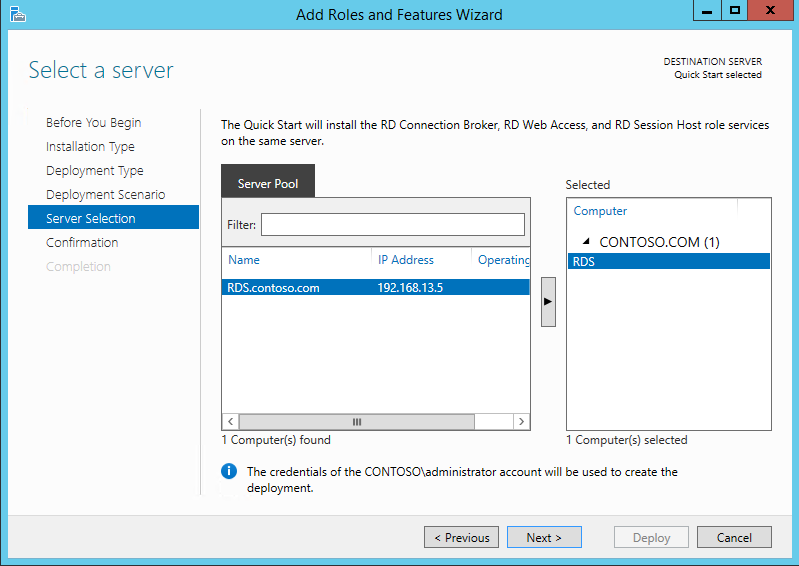
  6. On the Server Selection screen, verify the server is selected and click Next.
    server selection
  7. On the Confirmation screen, check the box to Restart the destination server automatically if required and click Deploy.  The server will automatically reboot.
    confirm
  8. Log into the server after the reboot.  The wizard will automatically launch and the deployment should complete.  Close the wizard when complete.
    completed
  9. Go back to Server Manager.  On the left side click on Remote Desktop Services.  You should see a screen similar to the following.
    RDS console.PNG
  10. Click the + symbol above RD Licensing.  This will launch the wizard to add a licensing server.
  11. Add the server to the Selected list and click Next.
    License server add
  12. Click Add.  When the process completes, click Close
  13. Click the TASKS button next to DEPLOYMENT OVERVIEW  and choose the option to Edit Deployment Properties.
    edit deployment properties
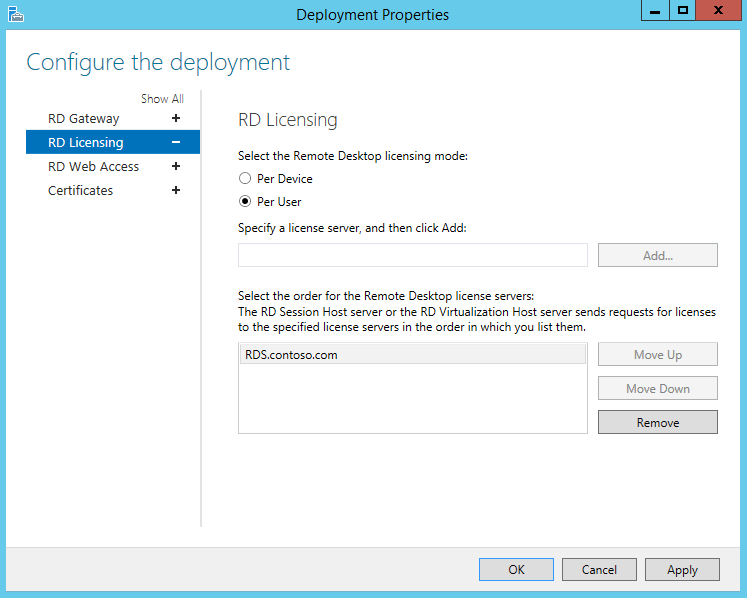
  14. Click the RD Licensing option on the left side.  Choose the licensing mode that matches the RDS CALs purchased.  The licensing server should already be populated.  If it is not type in the FQDN (Fully Qualified Domain Name) and click Add.  Click OK.
    config license mode


You now have a very basic setup of Remote Desktop Services.  The next step is to activate your license server and install your RDS CALs.  I will write an article on that process in the near future and update this article once it is published.


*Microsoft discourages making an RDS server a domain controller.  If it is required, see this technet article.

Virtual machine activation issues on an OEM host

Here is a situation I run into on a frequent basis.

  • We have a new server from a OEM (Original Equipment Manufacturer) like Dell, HP or Lenovo.
  • The server has a factory installed OEM operating system.
  • The server is setup as a Hyper-V host with virtual machines
  • The user setting up the virtual machines does not have physical access to the server.
  • The user extracts the product key from the host with a tool like Belarc advisor or Magical jellybean keyfinder.
  • The user attempts to use the extracted product key on the virtual machines and activation is not successful.

So where did the user go wrong in the above situation?  And if the product key works on the Hyper-V host, why will it not work on the virtual machines?

Before we can answer the above questions we need to understand a little about the type of product key used by large OEMs.  Typically when a Windows operating system is installed by an OEM, an OEM_SLP (System Locked Pre-installation) key is used.  This type of key is used to save time when building servers, as the server does not have to be activated with Microsoft.  When this type of key is entered into a Windows installation, Windows will query the SLIC (System Licensed Internal Code) table located in the BIOS (Basic Input Output System) of the machine.  If the table matches what is expected, then Windows will activate.  With this in mind, a Dell OEM SLP product key can only be used on a Dell server.  And an HP OEM SLP product key can only be used on a HP server.

To answer both questions.  As explained above the product key in the Hyper-V host is an OEM_SLP key.  This key requires that Windows query the bios of the system and verify the SLIC table matches.  A virtual machine has an emulated bios from Hyper-V.  The SLIC table does not match and Windows will not activate.

Now that we understand the problem, how can we identify it.

  1. A couple of questions to start with.  Did the server come pre-installed with Windows.  If so, has the product key been changed?  If the server came pre-installed with Windows and the product key has not been changed, then we likely have an OEM_SLP product key.
  2. On the Hyper-V host and the virtual machine, do the following.
    1. Open an administrative command prompt
    2. run the following command: slmgr /dlv  If the Product Key Channel is OEM:SLP, then you have confirmed we have an OEM:SLP product key

OEMSLP

The solution is quite simple.  The user needs to locate the product key sticker on the server and use the product key from it to activate the virtual machines.  Here are the commands to run, from an administrative command prompt, on the virtual machine to do this quickly:

  1. slmgr /upk
  2. slmgr /ipk xxxxx-xxxxx-xxxxx-xxxxx-xxxxx  (replace the x’s with the actual key)

Windows should then activate within a minute.

10 < 6

It turns out when performing a WMI (Windows Management Instrumentation) query, 10 is less than 6.  The reason for this is because the version number is treated as a string and not a number.  So the 10 is actually treated as 1, and 1 is less than 6.

So why is this important?  In Windows Server 2012 Essentials folder redirection will not work for Windows 10 clients by default.  This is due to the WMI query used by the folder redirection group policy.

The fix is to edit the WMI query used by the policy.  Here is the process.

  1. Open the Group Policy Management console. (gpmc.msc)
  2. Expand Forest, then Domains, and finally the domain name.
  3. Click on the “WSE Group Policy Folder Redirection” policy.
  4. At the bottom of the Scope tab on the right, click Open in the WMI filtering section.
  5. Click the Edit Filter button.
  6. Click on Edit.
  7. Change the query to: select * from Win32_OperatingSystem where Version like “10.%” or Version >=”6.1″
  8. Click OK on the warning about the namespace.
  9. Click the Save button.
  10. Close the Group Policy Management console.

Once the WMI query is corrected, the Windows 10 client will need to be rebooted or have group policy updated.  To force group policy update on any Windows device, run gpupdate /force from a command line.

So there you have it 10 can be less than 6.


Source: grouppolicy.biz

Anywhere Access wizard

Good morning.  I figured it was time for Windows Server Essentials to get some time on this blog.  What better way to start than with the main wizard in Essentials.   The Anywhere Access wizard.  Anywhere access is probably one of Windows Essentials top features.  Here is what it can do.

  • Allow access to file shares on the server through a web interface.
  • Allow encrypted RDP (Remote Desktop Protocol) access to any system joined to the domain
  • Allow SSTP (Secure Socket Tunneling Protocol) VPN (Virtual Private Network) access.
  • Allow remote access to the Dashboard to administer the server

All of this is setup automatically with an easy to use wizard.  There are two requirements though for running the wizard; internet access, and a trusted certificate.

So what can possibly go wrong?
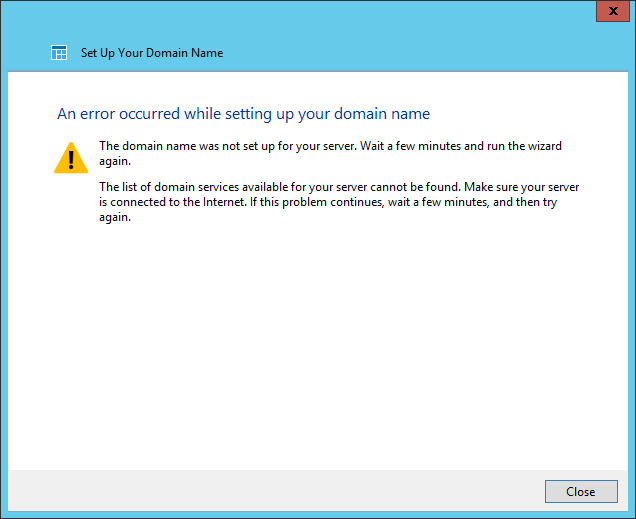
Essentials Internet

This is the most common issue that I see with the wizard.  Basically, the wizard does not believe the server has internet access.  So how does the wizard know whether the server is connected to the Internet?  It checks to see if the name www. microsoft. com is resolvable in DNS (Domain Name System).  If it is, then the wizard will continue even if it cannot access the list of domain services. So if this error comes up it typically indicates a DNS problem problem.

So what is a good method for troubleshooting this issue?

  1. Connect to the DNS management console.  (dnsmgmt.msc)
  2. Right-click the server name and choose properties.
  3. Go to the Root Hints tab.
  4. Click the “Copy from Server” button.
  5. Enter in 198.41.0.4 and click OK.
  6. Switch to the Forwarders tab.
  7. Click the Edit button.
  8. Delete all forwarders.
  9. Test access to http://www.microsoft.com and if successful, run the Anywhere Access wizard again.

If the problem still persists, then it is time to go deeper.  Some ISPs (Internet Service Providers) block access to root hints and require the use of their DNS servers.  This is fairly rare, but I have encountered it a few times.  To test and configure a DNS forwarder, follow the instructions below.

  1. Open an admin command prompt.  (Right-click windows icon at bottom left and choose “Command Prompt(Admin)”)
  2. Type nslookup and hit enter.
  3. Type www. microsoft. com and hit enter (Remove the spaces).

    Good output:

    Server:  server.myessentialsdomain.local
    Address:  192.168.1.2
    
    Non-authoritative answer:
    Name:    e10088.dspb.akamaiedge.net
    Addresses:  2600:1404:21:28b::2768
    2600:1404:21:288::2768
    104.93.66.12
    Aliases:  www.microsoft.com
    www.microsoft.com-c.edgekey.net
    www.microsoft.com-c.edgekey.net.globalredir.akadns.net


    Bad output:

    Server:  server.myessentialsdomain.local
    Address:  192.168.1.2
    
    ***server.myessentialsdomain.local can't find www.microsoft.com: Non-existent domain

    If you received the good output, try the Anywhere access wizard again. If you are seeing the bad output, then proceed on.

  4. Type server 8.8.8.8 and hit enter
  5. Type www. microsoft. com and hit enter. (Remove the spaces)  Refer to step 3.  If good output is produced, then proceed on.  If bad output is produced, then repeat step 4 and 5 using the DNS server provided by your ISP.  Proceed good output is received.
  6. Open the DNS management console.
  7. Right-click the server name and choose properties.
  8. Click on the Forwarders tab.
  9. Click the Edit button.
  10. Add the server IP address that worked in 4.
  11. Click OK twice.
  12. Switch back to the admin command prompt.
  13. Type ipconfig /flushdns and hit enter.
  14. Re-run the Anywhere Access wizard.

If the above steps don’t fix the problem for you, I want to hear about it in the comments section.

OWA, Something went wrong :( and the case of the missing sharedwebconfig.config

Good morning.  I wanted to take the time this morning to go over an issue I saw the other day.  This issue was pretty difficult to track down, so I figured I would go over as many of the symptoms as possible.  This is in hope that someone suffering this issue will have an easier time of it.

So I am working with a deployment consultant and he has an issue where OWA (Outlook Web Access) is not working.  We have a new deployment of three 2016 Exchange servers. First thing, I checked the version of .NET, as my group have seen a few cases of .NET 4.6.1 on Exchange.  Well it appears that WSUS had pushed it.  I figured we had found the issue.  We reverted .NET to 4.5.2 and tested on one server.  OWA is now working.  So I was thinking great, we have the issue resolved.  Unfortunately, after reverting all 3 servers there are still problems.  It appears that one of them is working, but two are not.  Here are the symptoms I found.

  • In the IIS logs for the Exchange frontend are the following lines:
    timestamp::1 POST /owa/auth.owa &CorrelationID=<empty>;&ClientId=123&cafeReqId=123;&encoding=; 443 user.name ::1 Mozilla/5.0+(Windows+NT+6.3;+WOW64;+Trident/7.0;+rv:11.0)+like+Gecko https://localhost/owa/auth/logon.aspx?replaceCurrent=1&url=https%3a%2f%2flocalhost%2fowa%2f%23authRedirect%3dtrue 302 0 0 0
    timestamp::1 POST /owa/sessiondata.ashx appcacheclient=1&acver=15.1.225.42&crr=1&CorrelationID=123;&ClientId=123&ClientRequestId=123&encoding=;&cafeReqId=123; 443 user.name ::1 Mozilla/5.0+(Windows+NT+6.3;+WOW64;+Trident/7.0;+rv:11.0)+like+Gecko - 302 0 0 15
    timestamp::1 GET /owa/auth/errorFE.aspx httpCode=500&CorrelationID=123;&ClientId=123&cafeReqId=123;&encoding=; 443 - ::1 Mozilla/5.0+(Windows+NT+6.3;+WOW64;+Trident/7.0;+rv:11.0)+like+Gecko - 200 0 0 703
    timestamp::1 POST /owa/plt1.ashx cId=123&msg=USRCompositeServerErr&tg=&MDB=789&nId=0000000000000000&MBX=123&sdCoId=123_123&sds=200&fe=FrontEndSERVERNAME&be=null&cbe=null&cver=15.1.225.42&sdver=null&...+like+Gecko - 302 0 64 15
    timestamp::1 GET /owa/auth/errorFE.aspx httpCode=500&CorrelationID=<empty>;&ClientId=123&cafeReqId=123;&encoding=; 443 - ::1 Mozilla/5.0+(Windows+NT+6.3;+WOW64;+Trident/7.0;+rv:11.0)+like+Gecko - 200 0 0 0
    timestamp::1 GET /owa/ bO=1&CorrelationID=<empty>;&ClientId=123&ClientRequestId=123&encoding=;&cafeReqId=123; 443 user.name ::1 Mozilla/5.0+(Windows+NT+6.3;+WOW64;+Trident/7.0;+rv:11.0)+like+Gecko - 302 0 0 0
    timestamp::1 GET /owa/auth/errorFE.aspx httpCode=500&CorrelationID=<empty>;&ClientId=123&cafeReqId=123;&encoding=; 443 - ::1 Mozilla/5.0+(Windows+NT+6.3;+WOW64;+Trident/7.0;+rv:11.0)+like+Gecko - 200 0 0 15
  • In the IIS logs for the Exchange backend, the following is found:
    timestamp ::1 GET /owa/auth/15.1.225/themes/resources/segoeui-regular.eot &CorrelationID=<empty>;&ClientId=123&cafeReqId=123;&encoding=; 443 - ::1 Mozilla/5.0+(Windows+NT+6.3;+WOW64;+Trident/7.0;+rv:11.0)+like+Gecko https://localhost/owa/auth/errorFE.aspx?httpCode=500 200 0 0 0
    timestamp ::1 GET /owa/auth/15.1.225/themes/resources/segoeui-semilight.eot &CorrelationID=<empty>;&ClientId=123&cafeReqId=123;&encoding=; 443 - ::1 Mozilla/5.0+(Windows+NT+6.3;+WOW64;+Trident/7.0;+rv:11.0)+like+Gecko https://localhost/owa/auth/errorFE.aspx?httpCode=500 200 0 0 0
  • Checking the event log gives an event ID 1309 every time OWA is accessed.  Below are the details.
    Log Name:      Application
    Source:        ASP.NET 4.0.30319.0
    Date:          3/19/2016 5:49:48 AM
    Event ID:      1309
    Task Category: Web Event
    Level:         Warning
    Keywords:      Classic
    User:          N/A
    Computer:      Exchange2016.MyExchange.com
    Description:
    Event code: 3005 
    Event message: An unhandled exception has occurred. 
    Event time: date/time 
    Event time (UTC): date/time 
    Event ID: ...
    ...
    
    ...
    ...
    
    <Data>Exception has been thrown by the target of an invocation.
       ...
    ...
    ...
    ...
       at System.Web.Hosting.PipelineRuntime.InitializeApplication(IntPtr appContext)
    
    Could not load file or assembly 'Microsoft.Exchange.Diagnostics, Version=15.0.0.0, Culture=neutral, PublicKeyToken=31bf3856ad364e35' or one of its dependencies. The system cannot find the file specified.
       at Microsoft.Exchange.Clients.Owa2.Server.Core.OwaApplication..ctor()
       at Microsoft.Exchange.Clients.Owa2.Server.Core.BaseApplication.CreateInstance()
       at ASP.global_asax..ctor()
    
    </Data>
    ...
    ...


After some extensive checking of the modules in IIS (Internet Information Services), there did not appear to be a configuration issue.  I then tripped upon the following blog article.  This led me to a Microsoft KB on the topic.  It turns out that sometimes when you install Exchange, the SharedWebConfig.config file does not get created.  The fix is to copy one from a working server.  Well what if you don’t have a working server?  In this case we did, but what if you just have one server?  You are in luck.  Here is a copy of the SharedWebConfig.config file.  Just rename the extension from .doc to .config.  I took this from an RTM Exchange 2016 server, so I am not sure it will work in 2013.

I hope this helps you out.

Microsoft Exchange OWA and the dreaded HTTP 500 error

Here is an issue I see just infrequently enough to forget it.  When accessing OWA (Outlook Web Access), the following interaction takes place.

  1. The user accesses OWA via a web browser and receives the logon page.
  2. The user enters his/her credentials and presses the Sign in button.
  3. The user is presented with a 500 Internal Server Error screen.  The address indicated is https://myexchangeserver.mydomain.com/owa/auth.owa.  The title bar typically indicates HTTP 500 Internal Server Error.

The most common cause for the above behavior is the “Microsoft Exchange Forms-Based Authentication service” is not started.  Sometimes this service does not automatically start at boot.  Simply starting the service will correct the issue.

In case the above is not causing the issue, there is another easy step to correct the issue.  Reset the OWA virtual directory.  Below are the PowerShell commands.

  • Get-OwaVirtualDirectory ‘SERVER\owa (Default Web Site)’ | fl
  • Remove-OwaVirtualDirectory ‘SERVER\owa (Default Web Site)’
  • New-OwaVirtualDirectory -WebSiteName ‘Default Web Site’

In all of the above commands, replace SERVER with the actual server name.
The first command is to get all settings for OWA.  This can be useful if it is later determined there were custom settings that need to be restored.  The second command removes the existing virtual directory.  The last command creates a new OWA virtual directory will all default settings.

If after doing all of the above, and the issue remains, it is time to start going through the IIS (Internet Information Server) logs and the event viewer to determine the cause of the problem.

If you have another scenario where OWA is generating a 500 Internal Server Error I want to hear about in the comments section.

How to measure available network bandwidth

This is an issue I see from time to time.  A server appears to be “slow” on the network.  When you run into this kind of an issue it can be difficult to troubleshoot as there are a considerable number of variables that may be causing the “slowness”.  One of the first tests I like to perform is to test the available network bandwidth.  It is fairly easy to test and will cut the possible culprits in half.

Below is a step-by-step on how to test, accompanied by a diagram.  A note on testing.  In the diagram below the Problem server and Working server have the same network path back to the Client PC.  This allows an apples-to-apples comparison to be made.

iperf bandwidth diagram

  1. Download the Iperf utility.  You can get it from here.  Copy it to the Client PC, Problem server and Working server.
  2. Extract the Iperf zip file on the Client PC, Problem server and Working server.
  3. On the Client PC, open an administrative command prompt and navigate to the folder with the extracted Iperf binaries.  Run the following command*: Iperf3.exe -s
  4. On the Problem server, open an administrative command prompt and navigate to the folder with the extracted Iperf binaries.  Run the following command**: Iperf3.exe -c 192.168.1.9 -w 2m -t 30s -i 1s
  5. Repeat step 4 on the Working server


The Working server and Problem server can now be compared directly.  If the speed and amount of data transferred are very close, then the network can be virtually eliminated as a cause of the “slowness”.  Also it is unlikely there is a network card hardware or driver issue.
However if the Problem server transferred significantly less data or the transfer speed was significantly lower, then the network needs a closer look. To rule out the network switch, swap the network switch ports of the two servers, and repeat step 4 and 5 above.  To rule out the network cable, swap the network cables of the two server and repeat step 4 and 5 above.  If problems continue, then update the network card driver and firmware on the problem server.  If at this point the issue remains, it is time to take a closer look at the operating system on the Problem server.


*Iperf runs on port 5201 by default.  If a firewall is enabled on the Client PC, the firewall will need to be disabled or an inbound rule created
**Change the IP address to match the system you ran the iperf.exe -s command on.

The Software Protection service

I ran across an interesting issue on Windows 2012 the other day, that I figured I would share.  I had a customer that had 4 virtual machines on the same host that were all indicating they were not genuine.  Aside from this we had 2 other strange behaviors.

  1. Server Manager would not populate any of the local server information fields.  All fields showed Unknown.
  2. Slmgr commands were failing with “Error:0x80070422 On a computer running Microsoft Windows non-core edition, run ‘slui.exe 0x2a 0x80070422’ to display the error text.”

When running the command slui.exe 0x2a 0x80070422 we get the following description.  The service cannot be started, either because it is disabled or because it has no enabled devices associated with it.So which service is it talking about?

The Software Protection service. This service runs in the background and checks every minute or so whether the OS is licensed properly.  In this particular case someone had disabled the sppsvc (Software Protection service).  The fix was easy, re-enable the service and start it.

This brings me to another issue I have seen with sppsvc on several occasions.  What if the service cannot be started due to an Access Denied error.  This can typically be fixed, but we need to know where the Access Denied is coming from.  The best tool, I have found, to do the job is Process Monitor.  With this tool it is possible to see every time the filesystem or registry is touched and which process did it.

Here is how you setup Process Monitor.

  1. First download the tool here.
  2. Run procmon.exe from the zip file.
  3. Accept the EULA.
  4. Stop capturing (Ctrl+E) and Clear the display (Ctrl+X)
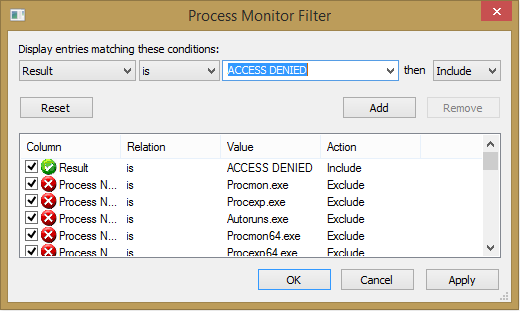
  5. Create a filter (Ctrl+L) with the following attributes.  Result is ACCESS DENIED then Include.  Add the filter and click OK.  See the picture below.

procmon filter

6. Start capturing events in Process Monitor (Ctrl+E) and immediately start the Software Protection service.
7. As soon as the Access Denied error pops up, stop capturing events in Process Monitor.

At this point there should be one or more ACCESS DENIED events.  When I have seen this issue, it has always been 2 registry keys that are missing permissions; HKLM\SYSTEM\WPA and HKLM\SOFTWARE\Microsoft\Windows NT\CurrentVersion\SoftwareProtectionPlatform.

To correct the access denied issue the registry permissions will need to be restored.  Normally that would mean restoring the permission for the account starting the service, in this case Network Service.  The Software Protection service is a little different though.  There is a special account that needs to be added, “NT Service\sppsvc”.  Below are the special permissions that need to be granted on the registry keys.

  • HKEY_LOCAL_MACHINE\SYSTEM\WPA.  All subkeys need to inherit these permissions.
    • Query Value
    • Set Value
    • Create Subkey
    • Enumerate Subkeys
    • Read Control
  • HKEY_LOCAL_MACHINE\SOFTWARE\Microsoft\Windows NT\CurrentVersion\SoftwareProtectionPlatform
    • Set Value
  • HKEY_LOCAL_MACHINE\SOFTWARE\Microsoft\Windows NT\CurrentVersion\SoftwareProtectionPlatform\PayloadOverride
    • Full Control


Using PowerShell to create a split DNS zone

I ran across a great blog article on setting up a split DNS (Domain Name System) zone this morning.   It got me to thinking though, can I do this in PowerShell?  The answer is yes.  And it is quicker than using the DNS management console.  Change the zone name and IP address to match the name and server IP respectively.

  1. Add-DnsServerPrimaryZone <test.mydomain.com> -ReplicationScope “Forest”
  2. Add-DnsServerResourceRecord -A -Name “.” -ZoneName <test.mydomain.com> -IPv4Address <99.99.99.99>


If you have a way of doing this command in one line I want to hear about it.  Post it in the comments below.